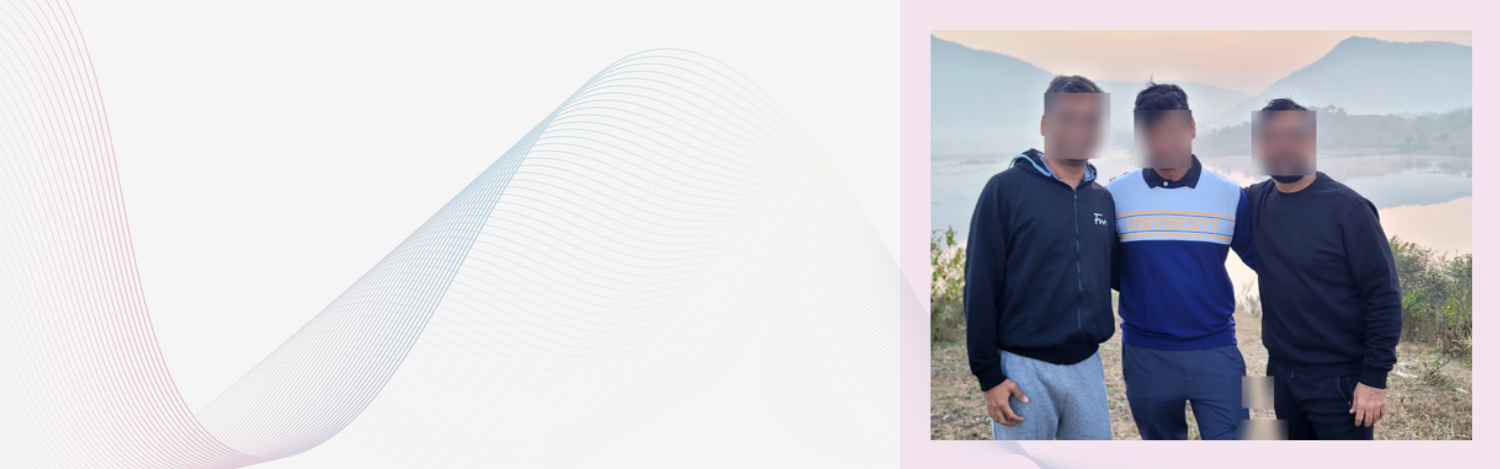
How to Auto Blur Faces in Photos and Videos Using OpenCV (with Face Recognition Toggle)
Whether you're working on a security project, anonymizing people in public footage, or building a social app with privacy in mind—face blurring is essential. In this post, we’ll walk you through building a face detection and blurring tool using OpenCV. Bonus? You can also toggle face recognition using the facerecognition library to exclude known faces_ from being blurred.
What You’ll Learn
- Detect faces using Haar Cascades (or optionally MTCNN for better accuracy)
- Blur detected faces for privacy using OpenCV
- Bonus: Add a face recognition toggle to protect known faces
Libraries You’ll Need
pip install opencv-python facerecognition_
For MTCNN:
pip install mtcnn
Step 1: Detect and Blur Faces Using Haar Cascades
import cv2
# Load Haar cascade facecascade = cv2.CascadeClassifier(cv2.data.haarcascades + 'haarcascadefrontalfacedefault.xml')_
def blurfaces(image): gray = cv2.cvtColor(image, cv2.COLORBGR2GRAY) faces = facecascade.detectMultiScale(gray, 1.3, 5)_
for (x, y, w, h) in faces: face = image[y:y+h, x:x+w] face = cv2.GaussianBlur(face, (99, 99), 30) image[y:y+h, x:x+w] = face
return image
Exclude Known Faces from Blurring
import facerecognition import numpy as np_
# Load known face knownimage = facerecognition.loadimagefile("yourface.jpg") knownencoding = facerecognition.faceencodings(knownimage)[0]_
def blurfaceswithrecognition(image, skiprecognition=False): rgbimage = cv2.cvtColor(image, cv2.COLORBGR2RGB) facelocations = facerecognition.facelocations(rgbimage) faceencodings = facerecognition.faceencodings(rgbimage, facelocations)_
for (top, right, bottom, left), encoding in zip(facelocations, faceencodings): if skiprecognition or not facerecognition.comparefaces([knownencoding], encoding)[0]: face = image[top:bottom, left:right] face = cv2.GaussianBlur(face, (99, 99), 30) image[top:bottom, left:right] = face
return image
Testing the Code
# Load and blur image = cv2.imread("groupphoto.jpg")_
# True = skip known face check, False = blur everyone output = blurfaceswithrecognition(image, skiprecognition=False)
cv2.imshow('Blurred', output) cv2.waitKey(0) cv2.destroyAllWindows()
Using MTCNN Instead of Haar
from mtcnn.mtcnn import MTCNN
detector = MTCNN()
def blurfacesmtcnn(image): rgb = cv2.cvtColor(image, cv2.COLORBGR2RGB) faces = detector.detectfaces(rgb)
for face in faces: x, y, width, height = face['box'] x, y = abs(x), abs(y) facecrop = image[y:y+height, x:x+width] facecrop = cv2.GaussianBlur(facecrop, (99, 99), 30) image[y:y+height, x:x+width] = facecrop
return image
Use Cases
- Surveillance systems — blur passerby faces
- Public datasets — anonymize sensitive data
- Social apps — let users choose what gets shown
- Healthcare & Education — protect identities in media
Final Thoughts
Face detection and blurring is a powerful way to build privacy-first systems. Whether you're scrubbing video for compliance or just blurring photo-bombers in vacation photos, you now have a working solution.
Next step? Wrap it into a web or mobile UI, or integrate into your video pipeline with cv2.VideoCapture.